
_________________________________________________________________
OneIP by Pulse-Eight
Control4 Driver
_________________________________________________________________
INTRODUCTION
Our products are designed to communicate with a variety of control systems. Most of the control systems have their software which require a driver to run our products.
This driver has been designed to allow a Control4 system to communicate with a OneIP virtual video matrix to allow brief monitoring, configuration, and maintenance.
PRE-REQUIREMENT
1. Installer ID
During the installation process, it is recommended to enter your 4-digit Pulse-Eight Installer ID. This process is optional (not mandatory) to enable to access to the Cloud Monitoring Service.
If you do not already have an Installer ID then you will need to register for a new account. Please contact Customer Support at Pulse-Eight (cs@pulse-eight.com).
2. Cloud Monitoring Service
Once you have an Installer ID, you will be able to gain access to the Cloud Monitoring Service which allows you to monitor all of your Pulse-Eight installations remotely in one place, as well as downloading the latest drivers and other documentation.
3. Web Interface
When setting up OneIP devices and before configuring the driver, it is important that the installer can access the admin menu on the Web Interface to configure the virtual matrix according to their requirements. The Web Interface can be accessed using a computer connected to same router/network as the matrix and visiting www.gotomymatrix.com in your web browser. Click on “Admin Area” in the menu and enter the default password “admin” to access all options.
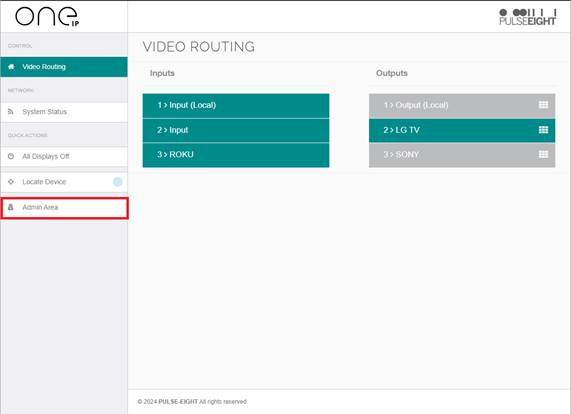
For more information on how to navigate in the admin menu and setup options available (e.g. adjusting HDMI input EDIDs, setting audio modes, HDBaseT link quality tests, etc) then please refer to “Web Interface Setup” section in the latest installation manual found at docs.pulse-eight.com.
CONFIGURE OneIP DRIVER
A virtual matrix is formed from a collection of individual devices. One device will be selected as the master device, and should be used for all communication with Control 4.
To find which device is the master, either go to www.gotomymatrix.com or click 'Connect to master' from any secondary device.
Automatic Discovery (Recommended)
1. The driver is not currently available through the Control4 online driver database. The latest driver can be downloaded from the cloud monitoring service.
2. Once the driver is installed, Add the device by going to the Discovered tab on the right-hand side under Items. Right click on the device and select ‘Add to Project’. Only the master device should be added
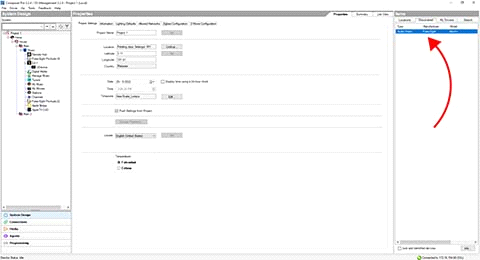
3. (A) Device IP Address: If Discovery was successful then the IP of the matrix should appear here after a few seconds.
(B) Installer ID: Enter your 4-digit Pulse-Eight Installer ID here and click set. This value will register this system to your monitoring account and allow you to monitor and support the system remotely. On the properties tab enter your 4-digit Installer ID and click set. Setting this value will also trigger a Monitoring Pulse to be sent so it should appear in your account immediately.
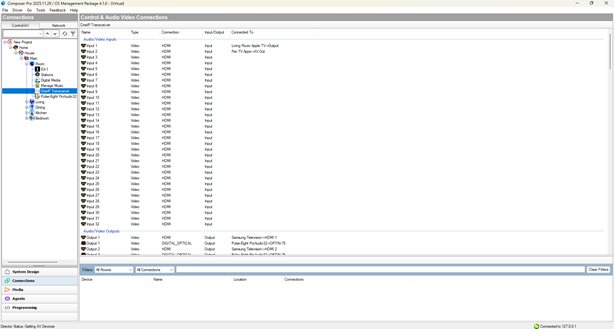
4. Click on the Connections tab (D) in Composer, select the matrix driver from the list on the Control/AV tab (E). To set up the matrix, drag and drop the matrix input/output connection at the top part to the device connection at the bottom part (F).
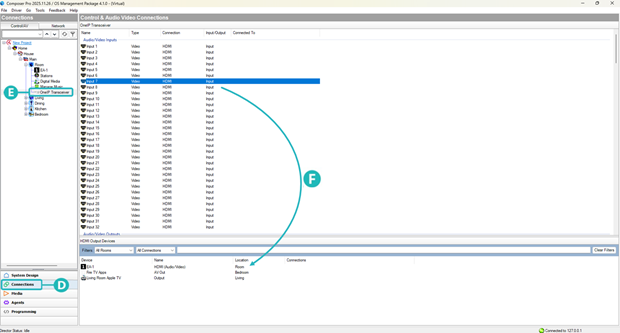
5. Setting the connections is no different than any other driver; however, ensure that the Inputs and Outputs match the physical wiring as per the matrix.
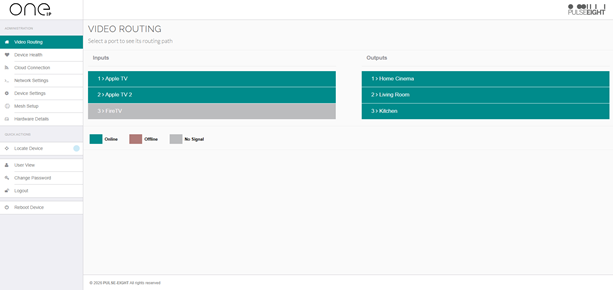
6. Setup is now complete. You may need to restart the director for all the changes to be applied correctly. However, this is not commonly required.
Note: If a previous version of the driver has been installed, then sometimes (very rare occurrence) the new driver version might not appear on composer - i.e. it still shows the previous version. If this is the case, then it might be necessary to turn OFF and then back ON the Control4 processor, and refresh composer after a few seconds. The new driver version should now appear.
PROPERTIES
On the properties tab you can examine various core values about the system, these are read only and automatically updated every few seconds.
If something is not working correctly you can enable Log Mode, set this option to Print and the Log Level to 5 – Debug for maximum information.
CONFIGURING CEC
CEC Support: CEC Support is disabled by default. You will be able to operate your connected devices without the usage of a third-party control system if CEC is enabled. We recommend turning this off if no CEC functions are utilized in the installation.
Send CEC ON during route change: By default, the matrix will send a CEC <power ON> command to the output when a zone is routed. If it is preferred to switch output devices on using their control4 drivers, then this can be disabled using this setting.
Send CEC OFF on zone off: By default, the matrix will not send a CEC <power OFF> command to the output when a zone is disconnected. However, the driver can send a power off on zone disconnection by simply enabling this setting.
ACTIONS
There are currently two buttons available in ComposerPro for this driver:
- Reboot System
Restarts the system immediately, doing so will interrupt video routing briefly - Send Monitoring Pulse
Triggers an immediate monitoring pulse to be sent, returning current system health data to monitoring.pulse-eight.com
VERSION HISTORY
V1.00: Initial Release.
SUPPORT
For further assistance please contact support@pulse-eight.com