Follow the steps below to get the most out of your neo Matrix, ProAudio switch, and optional ProAmp when used together.
If you're using a ProAmp, also read Things to Know Before Installing Your New Pulse-Eight ProAmp — it covers adjusting your audio settings and saving your choice as the new default, in addition to the information below.
neo:X+ — Set Audio to Source Mode
If you're using a neo:X+, you'll need to change the audio to Source Mode rather than Sink Mode.
1
Log in to the admin areaGo to gotomymatrix.com and navigate to the admin area.2
Open Audio ControlSelect Audio Control from the left-hand menu.3
Toggle to Source ModeSwitch the toggle so it's set to Source Mode rather than Sink Mode.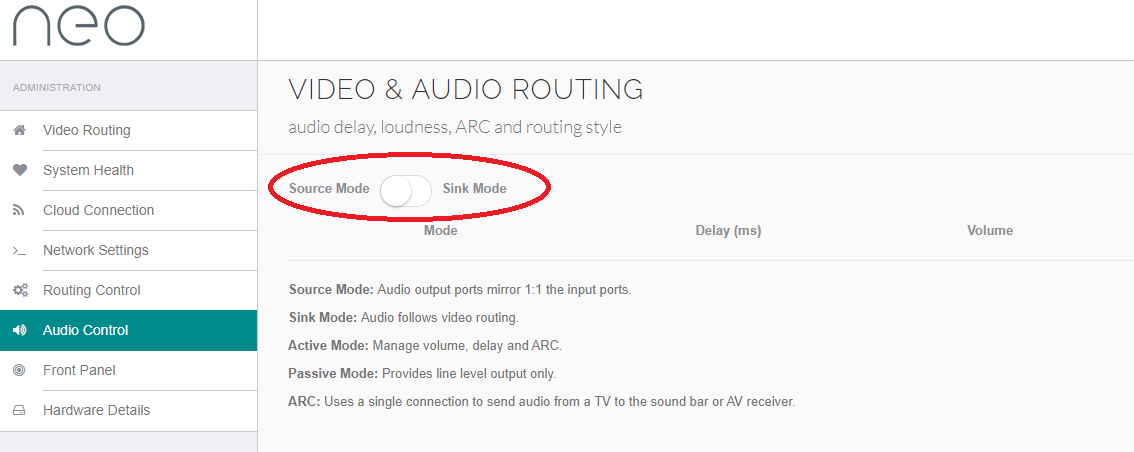
Source Mode: audio output ports mirror the input ports 1:1.
Sink Mode: audio follows video routing.
Sink Mode: audio follows video routing.
Using a Control System
1
Confirm the matrix is in Source Modeneo:6a and neo:8a only have Source Mode. neo:X+ needs this changed manually — see the steps above.2
Bind the control system to the source, not the matrix The control system needs to know the audio from the neo Matrix is no longer tied to its video. Do this by binding the ProAudio switch's analogue inputs directly to the analogue outputs of the sources connected to the neo Matrix — bypassing the neo Matrix's own outputs. The ProAudio inputs are effectively audio extractors connected to the HDMI inputs, and the control system must be configured with that in mind.Example: if a Blu-ray player is connected to the neo Matrix's HDMI input 1, the control system should bind ProAudio's input (connected to the matrix's analogue output 1) to the Blu-ray player's analogue outputs — not to the neo Matrix.
Sources Without Analogue Outputs
If a source has no analogue outputs, the control system's driver often simulates them. For example, an Apple TV has no analogue outputs, but its driver provides them anyway.
If a source has no analogue outputs and the driver doesn't simulate them, add a virtual HDMI audio extractor in front of the neo Matrix. This represents what the matrix is doing internally. Bind ProAudio's audio input to the virtual HDMI audio extractor's output instead.
Related Articles
Need help setting up your Matrix and ProAudio together?
Get in touch and we'll help you get it sorted.
UK: 01202 413 610 | US: (858) 748-8250 | support@pulse-eight.com
Get in touch and we'll help you get it sorted.
UK: 01202 413 610 | US: (858) 748-8250 | support@pulse-eight.com