This article explains how to set the OneIP Multiviewer to display your inputs in a supported layout
open your web browser and enter the IP address of one of the OneIP devices or go to gotmymatrix.com and select it from the list.

once you have connected to the OneIP devices click the tab on the left hand side of the screen that reads "Admin Area"
You will be prompted to enter a password to access this section, please refer to the OneIP manual for this password.
Once in the admin area click 'Device Settings' on the left hand side of the screen:
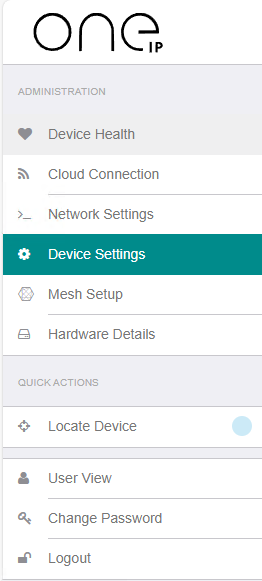
Here you will see several sections of multiviewer setup. I will discuss each section from top to bottom:
Multiviewer Output
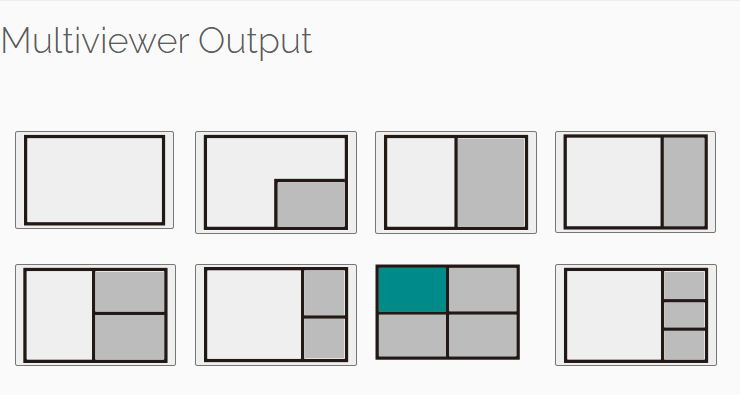
This section shows how the screens will be displayed on the output screen in an illustrated manner. To give a quick explanation of each from top row to bottom row left to right:
1. Single Input Full Screen
2. 2 Inputs; 1 full screen, 1 bottom right quarter screen
3. 2 Inputs; Vertical Split Screen 50:50
4. 2 Inputs; Vertical Split Screen 75:25
5. 3 Inputs; Window 1 left half screen, Window 2 top right quarter, Window 3 bottom left quarter.
6. 3 Inputs; Window 1 left 70%, Window 2 top right 15%, Window 3 bottom right 15%
7. 4 Inputs; Quarters
8. 4 inputs; Window 1 Left 70%, Window 2 Right Top, Window 3 Right middle, Window 4 Right Bottom
To change between mode simply click the picture of the layout you require. These are the only layouts currently available for this multiviewer
Multiviewer Settings
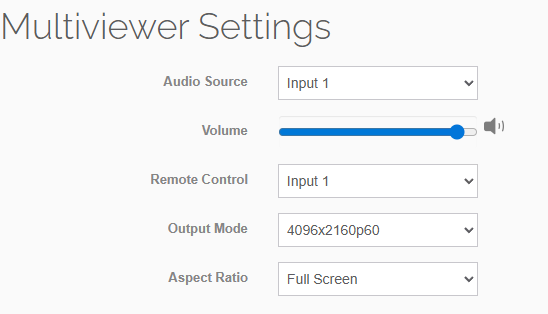
This section allows you to setup your output to your requirements.
Audio Source: This allows you to select which input the audio is passed from. For example if you wanted audio from input 2 to play via HDMI you would select 'Input 2'
Volume: This allows you to configure the volume being passed, this can still be adjusted on the end device separate to this bar. You can also click the to mute
Remote Control: This section is where you select which input will be sent any remote control inputs for example if using an IR remote and with the relevant accessories fitted if you sent a pause command it would only go to the input selected here.
Output Mode: This section allows you to select the resolution of the output device to ensure that the layouts fit correctly on the desired screen.
Aspect Ratio: Here you can toggle the Aspect Ratio between Full Screen and 16:9 depending on your output device
Multiviewer Windows
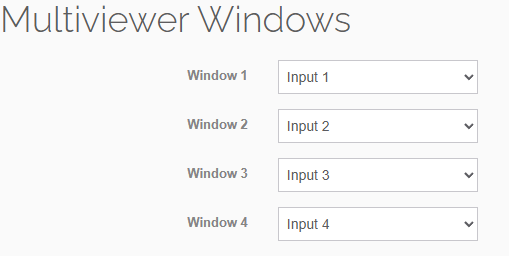
This section allows you to pick which Input is displayed in each window for the layouts listed under Multiviewer Outputs.
Each window can be set to Input 1 to 4 and will change in real time.
You can choose to have the same Input on multiple Windows, they will not swap with the Input that was changed.