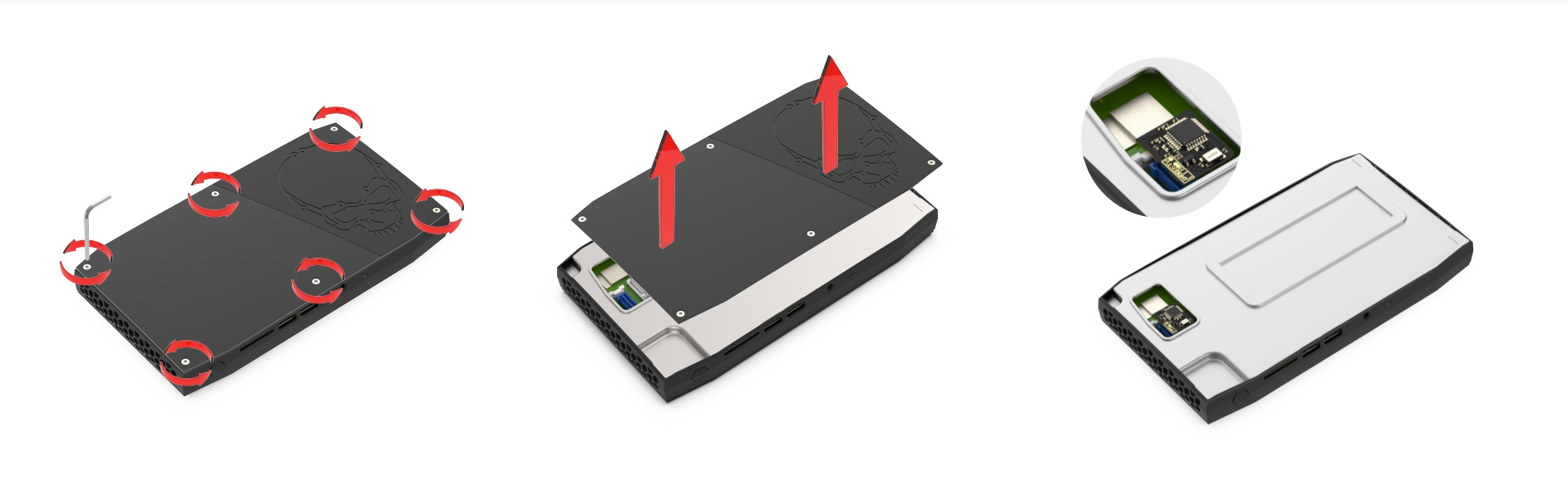
This article covers hardware installation of the Pulse-Eight CEC adapter into the Intel Skull Canyon NUC (NUC6i7KYK). The Skull Canyon uses the same adapter as the Hades Canyon NUC, connected to the 20-pin Internal Common IO header on the motherboard.
The Skull Canyon / Hades Canyon CEC adapter is legacy hardware. Intel discontinued the NUC product line in 2023. For new installations, the USB-CEC Adapter is the current recommended product.
Compatible Models
This adapter and these instructions apply to the following Skull Canyon NUC model:
- NUC6i7KYK
For Hades Canyon NUC models (NUC8i7HVK, NUC8i7HVKVA, NUC8i7HNK, NUC8i7HNKQC), see the Hades Canyon NUC — CEC Adapter Instructions article. The adapter is the same, but the motherboard header location differs between the two units.
What You Will Need
- Pulse-Eight Skull Canyon / Hades Canyon CEC Adapter
- A small Phillips-head screwdriver to open the NUC chassis
- libcec 8.1.1 — download from github.com/Pulse-Eight/libcec/releases
Hardware Installation
Power off and unplug the NUC completely before opening the chassis. The adapter connects to the motherboard header — do not install it while the unit is powered on or connected to mains power.
1
Open the NUC chassis.Remove the four screws on the underside of the Skull Canyon unit and lift the bottom panel away. Set the panel aside.
2
Locate the 20-pin Internal Common IO header.This is the header on the motherboard that the CEC adapter connects to. Consult your NUC6i7KYK Technical Product Specification for the exact location — the header position varies across NUC models.
3
Connect the CEC adapter.Plug the adapter into the 20-pin header. Ensure the connector is fully seated and oriented correctly — pin 1 on the adapter should align with pin 1 on the header (usually marked with a triangle or dot on the motherboard).
4
Route the HDMI connector.The adapter has a short HDMI tail that exits the chassis. Route this carefully so it does not interfere with other components or get pinched when reassembling the chassis.
5
Reassemble the chassis.Replace the bottom panel and refit the four screws.
6
Connect the HDMI cable.Connect your TV to the NUC using the adapter's HDMI connector as the output. The adapter must be in the HDMI signal path between the NUC and the TV for CEC to function.
Software Installation
Once the hardware is installed, install libcec to enable CEC control:
1
Download libcec 8.1.1.Get the installer fromgithub.com/Pulse-Eight/libcec/releases
Choose the 64-bit installer (
libcec-x64-8.1.1.exe) unless you are running a 32-bit operating system.2
Run the installer.Follow the on-screen prompts to complete installation. CEC Tray will be installed alongside libcec and will appear in the system tray after installation.
3
Verify the adapter is detected.Open CEC Tray, go to
File → Enable Advanced Mode
then click the CEC Tester tab. Confirm that the adapter is listed and that power on/off commands work with your TV in standby.
If the adapter is not detected, ensure the 20-pin connector is fully seated on the motherboard header and that your TV is powered on and connected via HDMI before opening CEC Tray.
Related Articles
- Hades Canyon NUC — CEC Adapter Instructions
- Intel NUC CEC Adapters — Hardware Compatibility and Legacy Notice
- How to Install libCEC (Windows)
- Upgrading the Firmware of the CEC Adapter
- Getting Started — CEC Adapter
Need help with your Skull Canyon CEC adapter?
Contact Pulse-Eight support with your NUC model number and a description of the issue.
UK: 01202 413 610 | US: (858) 748-8250 | support@pulse-eight.com
Contact Pulse-Eight support with your NUC model number and a description of the issue.
UK: 01202 413 610 | US: (858) 748-8250 | support@pulse-eight.com