Firmware upgrades for the Pulse-Eight USB-CEC Adapter and NUC-CEC Adapter are performed through CEC Tray, which is installed as part of libcec. You must have libcec 8.1.7 installed before you can upgrade the firmware.
Before You Start
Download and install libcec 8.1.7 if you have not already done so:
- 64-bit (recommended):libcec-x64-8.1.7.exe
- 32-bit:libcec-x86-8.1.7.exe
For full installation instructions, see How to Install libCEC (Windows).
Upgrading the Firmware
Press the Windows key, type 'CEC-Tray' and press Enter to launch it. The CEC Tray icon will appear in the system tray.
Click the Configuration tab. The current firmware version of the connected adapter will be displayed here.
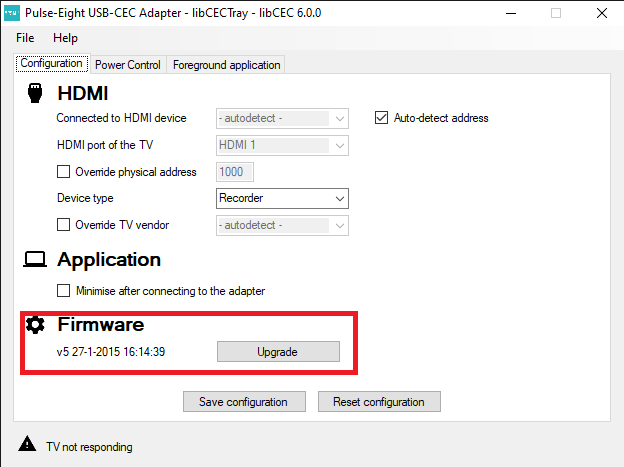
If a newer firmware version is available, the Upgrade button will be enabled. If the button is greyed out, your adapter is already running the latest firmware and no upgrade is needed.
Click Upgrade Firmwareand wait for the process to complete. A progress indicator will be shown. Do not close CEC Tray or disconnect the adapter during this time.
When the upgrade finishes, CEC Tray will confirm the new firmware version. The adapter is ready to use immediately — no reboot is required
Troubleshooting
The adapter is not detected in CEC Tray
Ensure the adapter is connected via USB (for the USB-CEC Adapter) or that the NUC internal header is properly seated (for NUC-CEC adapters). Make sure your TV is powered on and connected to the adapter via HDMI. Try closing and reopening CEC Tray.
The Upgrade Firmware button remains greyed out after enabling Advanced Mode
This does not always mean your adapter is up to date. In testing, a unit on firmware v8 showed no Upgrade option even with the latest libcec installed, Advanced Mode enabled, and the TV connected and working — while a newer firmware (v13) was actually available. If you suspect this is happening, use the standalone firmware updater instead of relying on this button (see below).
The Upgrade Firmware button doesn't reflect a real update
If you're on a supported build (libcec 8.1.7 or later) with Advanced Mode enabled and the adapter fully connected to a powered, CEC-enabled TV but the Upgrade button still won't appear, don't assume you're already on the latest firmware — this has been confirmed to happen even when a newer version is genuinely available. Instead, run the standalone firmware updater that libcec installs alongside CEC Tray:
C:\Program Files\Pulse-Eight\USB-CEC Adapter\cec-firmware-latest.exe
Run it as Administrator. As with the CEC Tray upgrade, do not unplug the adapter while it runs — treat it with the same care as the standard process above. If you see an "0xc000007b" error and the tool fails to launch, this is a known unresolved issue with the standalone flasher on some Windows systems; contact Pulse-Eight support rather than retrying repeatedly.
On Linux, the equivalent cec-firmware-upgrade tool has been removed from the PPA with no supported replacement at this time. If you need to update firmware and only have a Linux machine, use a Windows PC (or VM with full USB passthrough, not passthrough via a hypervisor like Parallels) to run the update instead.
Related Articles
- How to Install libCEC (Windows)
- Getting Started — CEC Adapter
- Intel NUC CEC Adapters — Hardware Compatibility and Legacy Notice
Contact Pulse-Eight support with your adapter type and the firmware version shown in CEC Tray.
UK: 01202 413 610 | US: (858) 748-8250 | support@pulse-eight.com