libCEC is the software that powers the Pulse-Eight USB-CEC Adapter. Installing it gives you CEC Tray — which lets you control your TV from your PC — as well as the command-line tools and batch files used for automation. This article covers installation on Windows.
Step 1 — Download the Installer
The current version of libCEC is 8.1.1. Download the correct installer for your PC:
| Version | Download | Use when… |
|---|---|---|
| 64-bit (recommended) | libcec-x64-8.1.1.exe | Most PCs running Windows 10 or 11 |
| 32-bit | libcec-x86-8.1.1.exe | Older PCs running a 32-bit version of Windows |
| EventGhost plugin | libcec-eventghost-plugin-8.1.1.egplugin | Only if you are using EventGhost for scheduling — install EventGhost first |
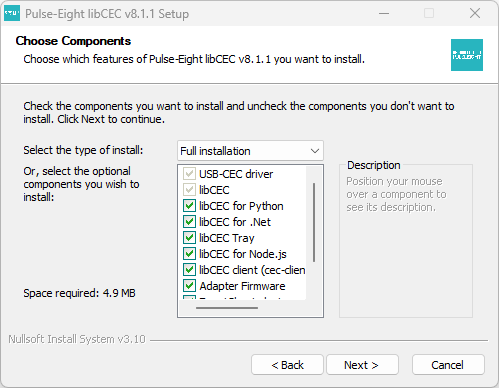
Step 2 — Run the Installer
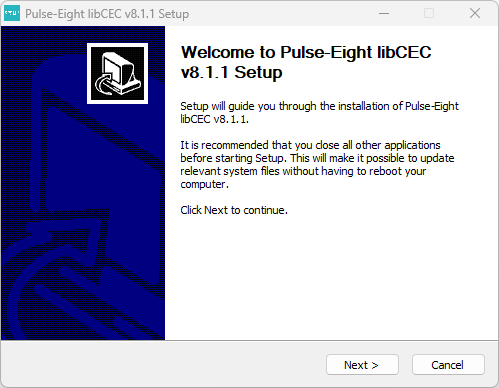 .
.
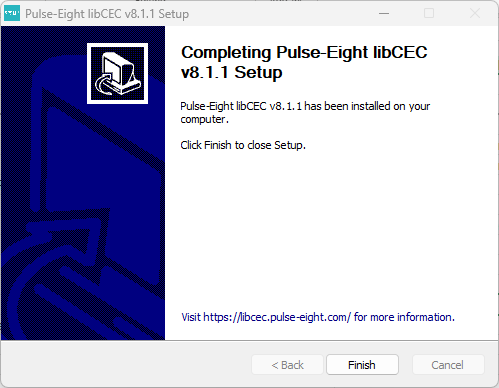
Step 3 — Check the Installation Worked
Once the installer finishes, check that libCEC installed correctly:
- Look in the bottom right corner of your screen (the system tray, near the clock). You should see the CEC Tray icon — a small Pulse-Eight logo. If it is not visible, click the arrow to show hidden icons.
- Open File Explorer and navigate to
C:\Program Files\Pulse-Eight\USB-CEC Adapter(orC:\Program Files (x86)\Pulse-Eight\USB-CEC Adapteron 32-bit). You should see the installation folder containingcec-client.exe,tv_on.cmd,tv_off.cmd, and other files.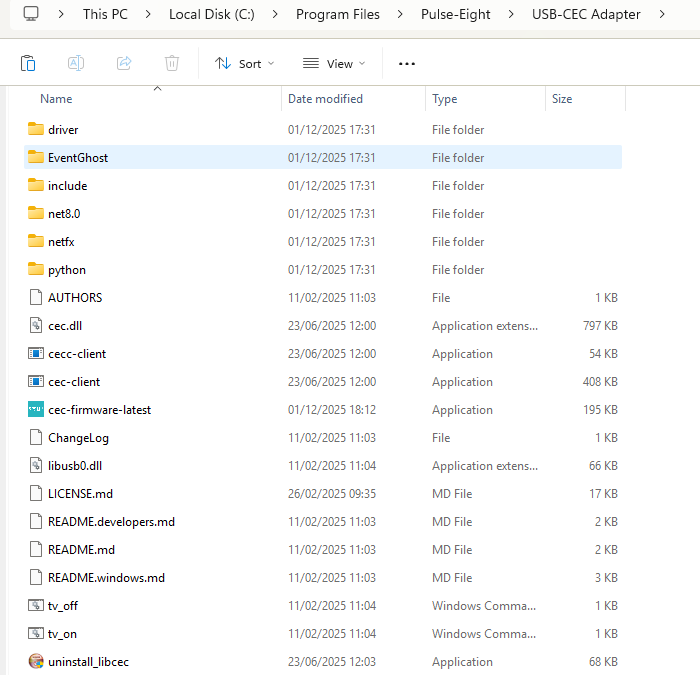
cec-tray, and press Enter to launch it manually. You can set it to start automatically with Windows — see CEC Adapter — Turn Your TV On When Your Windows PC Boots Using CEC Tray.What to Do Next
Now that libCEC is installed, connect your USB-CEC Adapter and confirm it is working. Open CEC Tray, go to File → Enable Advanced Mode, click the CEC Tester tab, and verify that your TV responds to power on and off commands.
From here, see the relevant guide for what you want to do:
- Getting Started — CEC Adapter — if this is your first time setting up
- Which TV Power Control Method Should I Use? — to decide the best way to automate TV power
- CEC Adapter — Turn Your TV On When Your Windows PC Boots — to turn the TV on automatically at startup
- Upgrading the Firmware of the CEC Adapter — to check your adapter is running the latest firmware
About the SHA256 Hashes
Each installer on the GitHub releases page has a SHA256 hash listed alongside it. This is an optional security check — it lets you verify that the file you downloaded has not been tampered with or corrupted. You do not need to check this to use libCEC, but if you want to verify your download, open a Command Prompt, navigate to the folder containing the installer, and run:
certutil -hashfile libcec-x64-8.1.1.exe SHA256
The output should match the hash shown on the GitHub releases page for that file.
Related Articles
- Getting Started — CEC Adapter
- Which TV Power Control Method Should I Use?
- Upgrading the Firmware of the CEC Adapter
- CEC Adapter — Setting Up libcec on Linux
- CEC Adapter — Setting Up libcec on macOS
- CEC Adapter — Using libcec with a Raspberry Pi
Contact Pulse-Eight support with your Windows version and a description of the problem.
UK: 01202 413 610 | US: (858) 748-8250 | support@pulse-eight.com