HDBaseT Link Quality — How to Test and What the Results Mean

The HDBaseT Link Quality test lets you check the health of a Cat cable run while on site, either through the matrix's local web interface or remotely. This article covers how to start the test and how to read the two result types.

You'll need to be in admin mode on the matrix web interface to run this test locally — see Accessing Admin Mode if you're not already logged in.

Starting the Test

1
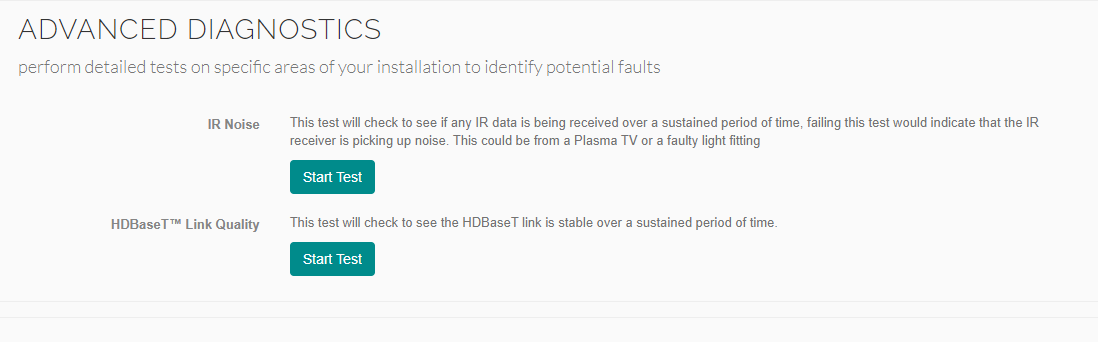
Go to System HealthIn admin mode, open System Health


 and find the Advanced Diagnostics section.  
2
Start the HDBaseT Link Quality testClick Start Test next to HDBaseT Link Quality. This checks whether the link is stable over a sustained period, rather than just a single snapshot.


3
Select the output and test type            Once the results view opens, use the first dropdown to choose the output                     you're testing, and the second to switch between the two test types: Mean                     Square Error and Channel Errors.

Mean Square Error Test


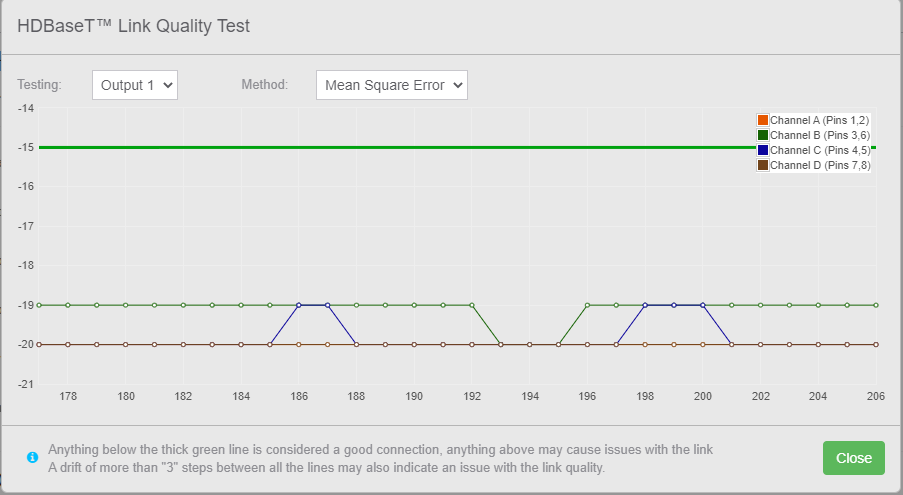
This is the ratio (in dB) of the signal power of a 'good' signal to a 'bad' one. It's analogue in nature, and directly affected by kinks, termination issues, and other physical cable problems.

Each channel colour on the graph represents one twisted pair in the Cat cable.

CheckPass Criteria
Channel spreadAll four channels within 3dB of each other, e.g. -21dB, -20dB, -21dB, -19dB
Absolute levelAll four channels below the -15dB line
A channel breaking these rules — even briefly — marks the cable as "Poor," even if it looks fine when you check it. If a channel spikes to 0 or -40dB, or briefly breaks the criteria above and then recovers, the test remembers this and still flags the cable as Poor. This is why a cable can meet the criteria when you're looking at it but still show as Poor — the issue may only be spiking for a few seconds every few hours.

Channel Errors Test


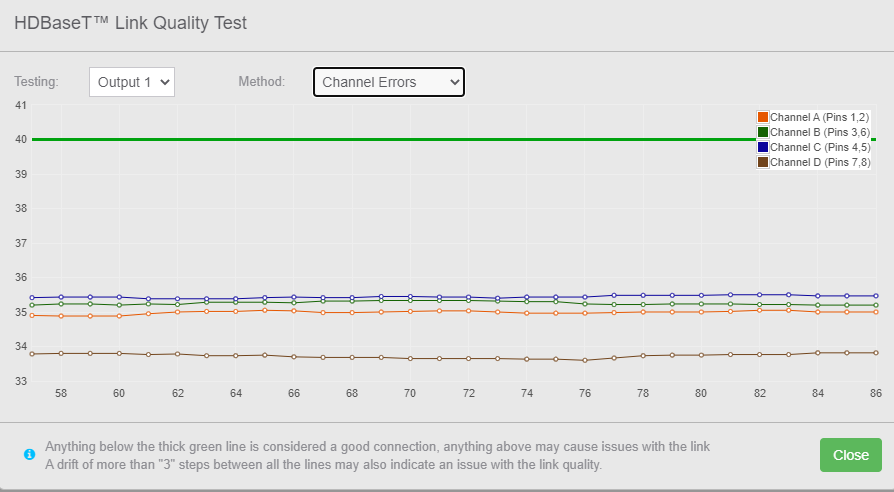
This measures the number of errors on the channel — packet loss and bit errors. It's digital in nature, but is affected by the same underlying cable issues as the Mean Square Error test.

As with Mean Square Error, each channel colour represents one twisted pair in the Cat cable.

CheckPass Criteria
Channel spreadAll four channels within 3 of each other, e.g. 35, 36, 35, 34
Absolute levelAll four channels below the 40 line
The same spiking behaviour applies here. If a channel spikes to 0 or 60, or briefly breaks the criteria above and then recovers, the cable will still be marked as "Poor" — even if the criteria are met when you happen to be watching.

Checking Remotely

1
Log in to your installer accountGo tomonitoring.pulse-eight.com and log in.
2
Select the productChoose the matrix you want to check from your product list.


3
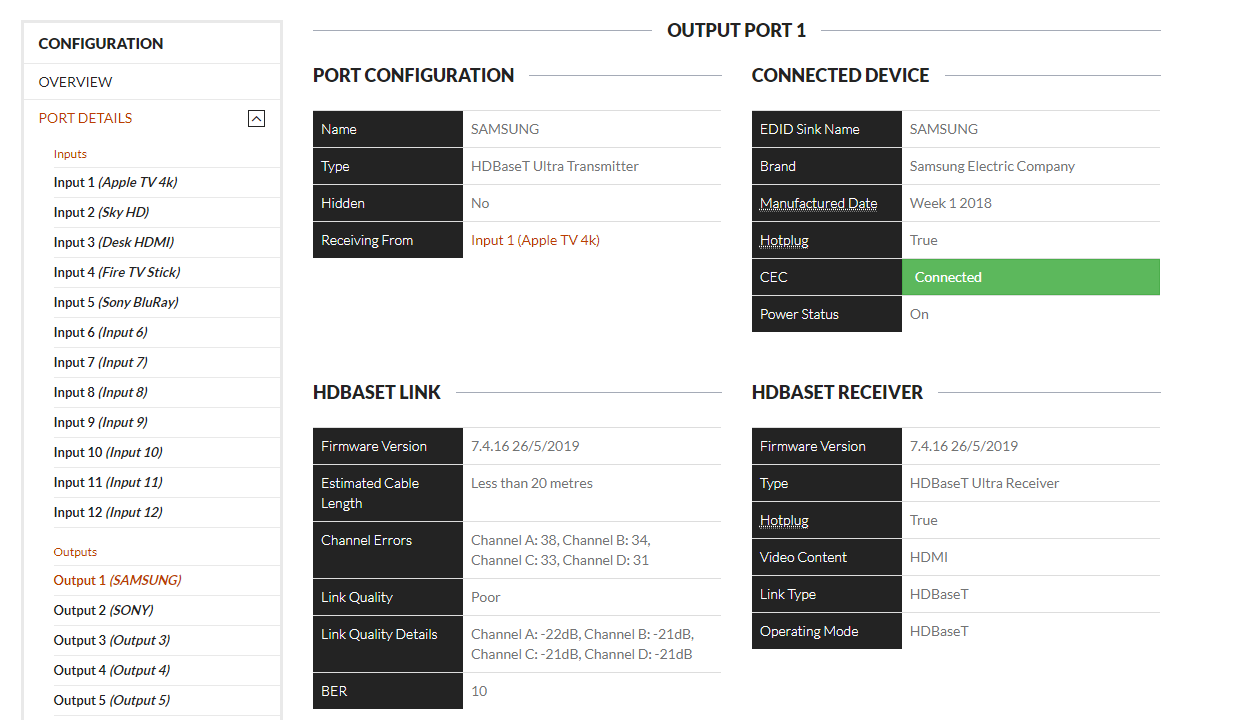
Select the output and check HDBaseT LinkChoose the output you want to check — the results are shown under the HDBaseT Link section.


Related Articles

Still showing a Poor link after checking the cable run?
Get in touch and we'll help you get it sorted.
UK: 01202 413 610 | US: (858) 748-8250 | support@pulse-eight.com


Was this article helpful? If not, submit a support ticket and our team will help.