Locking one zone to another makes it automatically follow that zone's source, volume, and tone controls — commonly used to keep a subwoofer in sync with the main speakers, or to make several zones in the same space behave as one. This is done using the "Lock Zone" parameter on Composer Pro's Properties tab.
This covers:
- Locking two or more zones together so they behave as one
- Sending volume to one zone and having another follow it
- Making one zone always switch to the same source as another
- Making a subwoofer follow the same source as the main speakers
Locking a Zone
The example below locks Zone 2 to Zone 1, so a subwoofer connected to Zone 2 follows a set of stereo speakers on Zone 1.
1
Select the zone you want to lock.On the Properties tab, set "Select Audio Output" to the zone that should follow another — in this example, Zone 2.
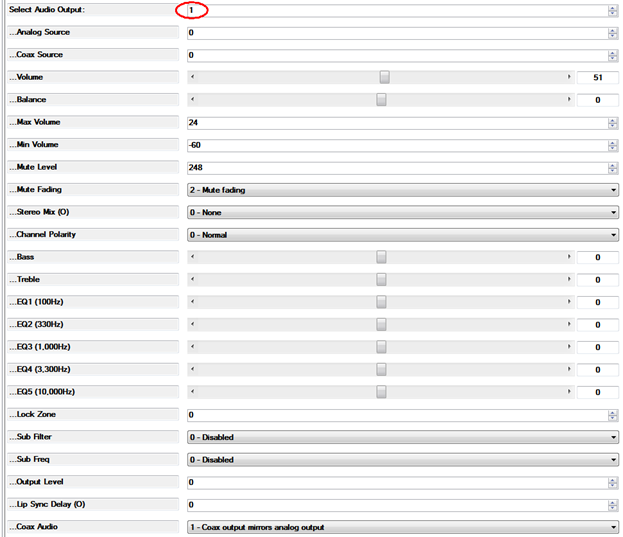
2
Set "Lock Zone" to the zone it should follow.Scroll down to the Lock Zone field and set it to the zone number you want this one to follow — in this example,
1.3
Done.From now on, whenever Zone 1 changes source or volume, Zone 2 will follow. Zone 1 itself shows no visible change.
More than one zone can follow the same zone. To add a third zone to the group, select Audio Output
3 and set its Lock Zone to 1 — now Zones 2 and 3 both follow Zone 1.What Follows vs. What Doesn't
| Follows the locked zone | Stays independent |
|---|---|
| Volume (including mute) | Equalizer settings — lets a subwoofer use different EQ than the main speakers |
| Bass and Treble | Output Level — lets a subwoofer's level be trimmed independently |
| Source changes | Lip Sync Delay — lets timing be compensated separately per output |
Re-locking a zone that already has followers will silently unlock them. If a zone is already being followed by others and you set it to follow a different zone instead, every zone following it reverts to unlocked. The same happens if a zone is accidentally set to follow itself. There's no warning prompt for this, so double-check the lock chain before changing a zone you know others are following.
Backing Up the Zone Lock Settings
Back up after every change. On Composer's Action tab, press Backup Audio Settings (except volume). Skipping this means a power outage can silently revert your zone locks.
If you're scripting this over serial or TCP/IP instead of using Composer, zone locking uses the same underlying
^LZ @zone,zoneToFollow$ commandRelated Articles
- ProAudio: Locking Two (or More) Zones Together (Config Tool)
- ProAudio: Locking the volume control (PuTTY)
- ProAudio: Setting Up the Paging System (Control4)
Need help with zone locking?
Our support team can help troubleshoot Control4 driver or zone lock issues.
UK: 01202 413 610 | US: (858) 748-8250 | support@pulse-eight.com