This guide sets up your PC to automatically turn your TV on every time Windows starts. It does this by adding a batch file — a small pre-built command — to your Windows Startup folder. It takes about five minutes and only needs to be done once.
Before You Start — Test the Batch File First
Before setting anything up, you need to confirm the command actually works with your TV. Open File Explorer and go to one of these folders depending on your PC:
C:\Program Files\Pulse-Eight\USB-CEC AdapterC:\Program Files (x86)\Pulse-Eight\USB-CEC Adapter
Find the file called tv_on and double-click it. Your TV should turn on within a few seconds.
Step-by-Step Setup
C:\Program Files\Pulse-Eight\USB-CEC Adapteror
C:\Program Files (x86)\Pulse-Eight\USB-CEC Adapter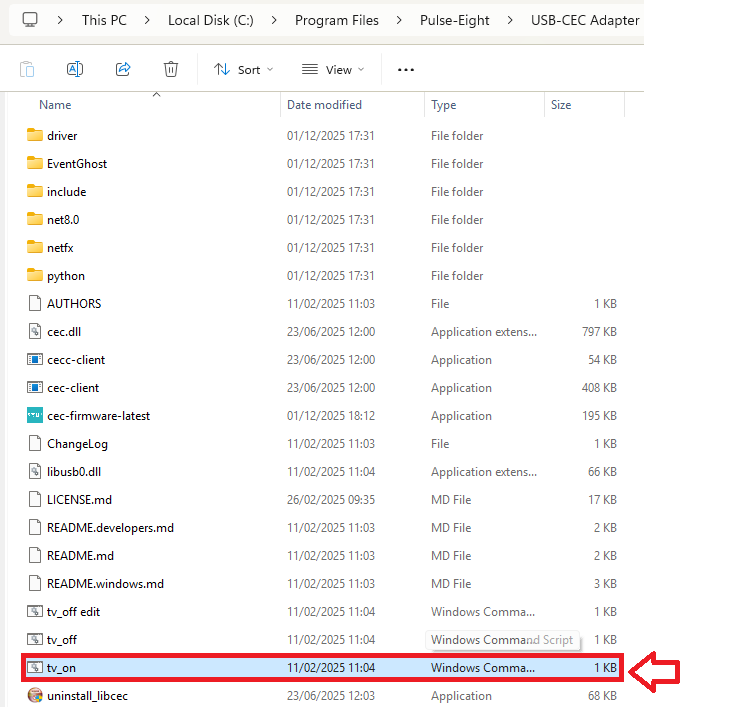
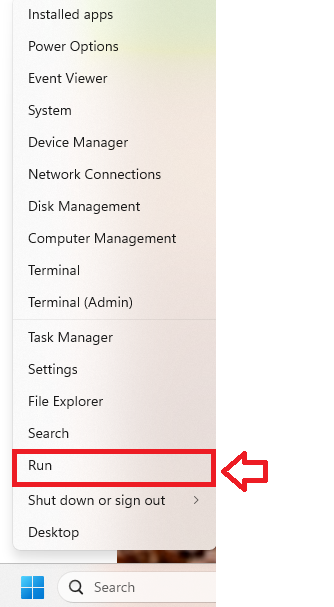 A small box will appear. Type
 shell:startup into the box and clickOK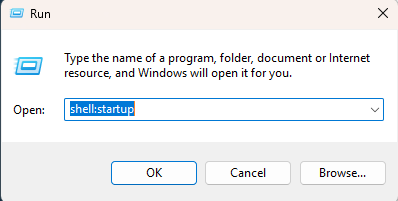 A folder will open — this is your Windows Startup folder.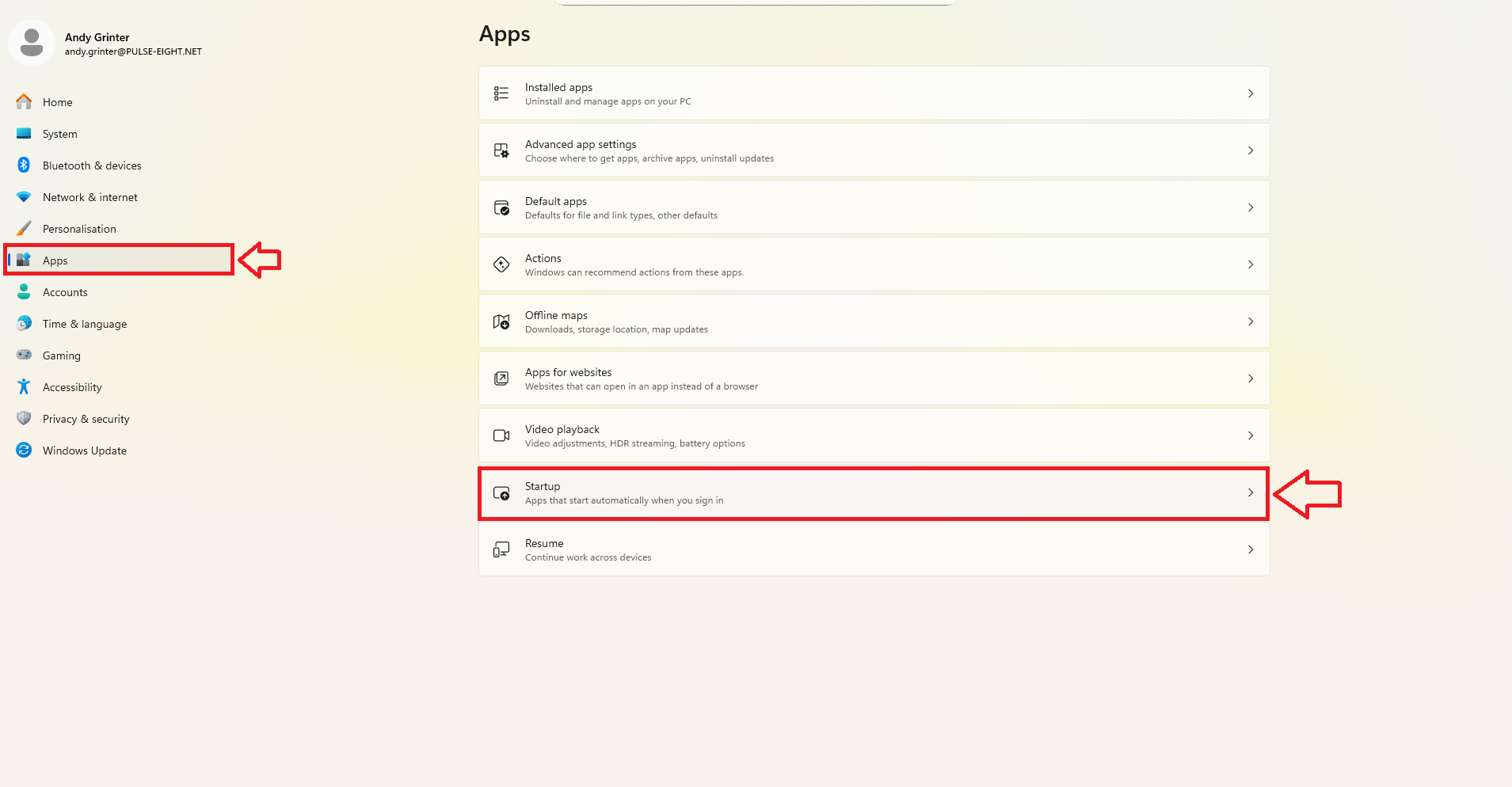
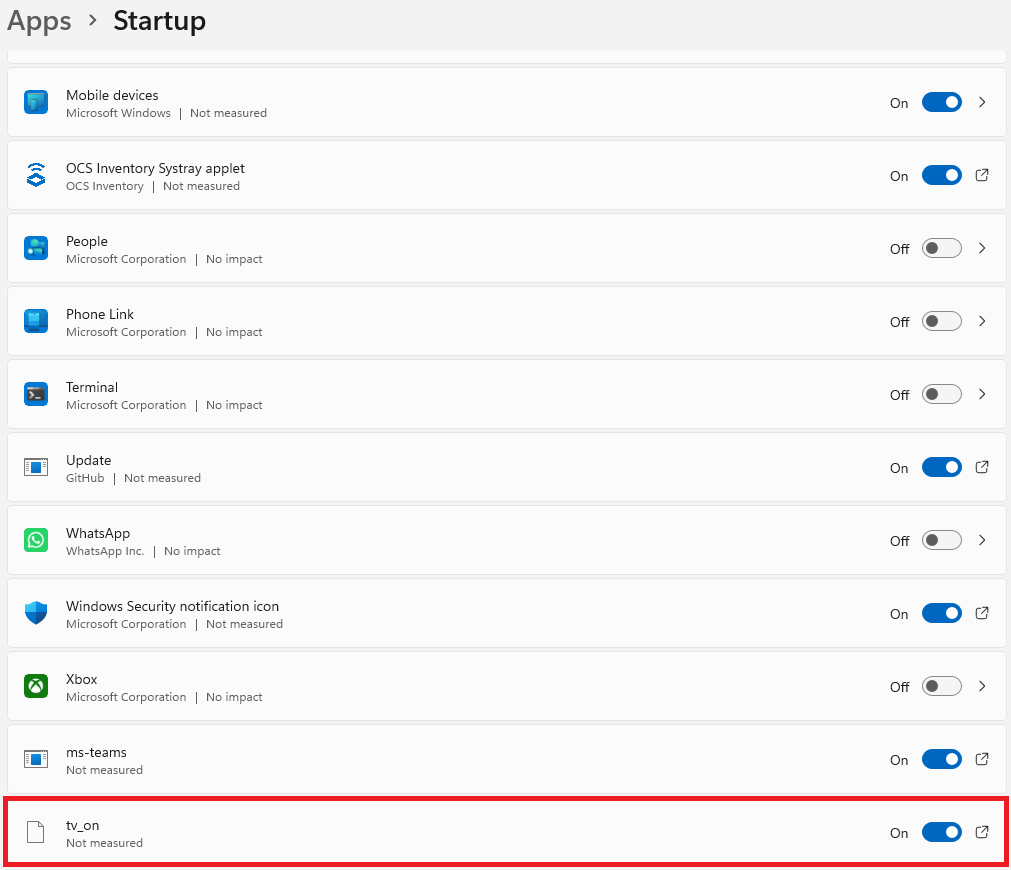
That's everything. Your TV will now turn on automatically every time your PC starts.
How to Check It's Working
Shut your PC down completely and turn your TV off. Then start your PC as normal. Your TV should turn on automatically within a few seconds of Windows loading.
My TV Is Switching to the Wrong Input
By default, the tv_on command either detects the HDMI port automatically or uses HDMI port 1. If your TV turns on but switches to the wrong input, you need to tell the command which port to use.
To do this, you will need to edit the tv_on file. Open the USB-CEC Adapter folder, right-click tv_on, and open it with Notepad. Find the last line of the file and add the following to the end of it, replacing the number with whichever HDMI port your adapter is connected to:
-s -p 3
For example, if your adapter is connected to HDMI 2, add -s -p 2. Save the file, then double-click tv_on to test it. Once it is working correctly, copy the updated file to the Startup folder again (replacing the old one).
Related Articles
- CEC Adapter — Turn Your TV On When Your Windows 11 PC Boots Using CEC Tray
- Turn On/Off TV Using USB-CEC Adapter (Windows Batch Script)
- How to Install libCEC (Windows)
- Which TV Power Control Method Should I Use?
- Getting Started — CEC Adapter
Contact Pulse-Eight support and let us know what happens when your PC starts and which TV you are using.
UK: 01202 413 610 | US: (858) 748-8250 | support@pulse-eight.com