This is a Legacy Support Article Relating to Zektro Branded ProAudios Sold before March 2021 Only. If you have a Pulse-Eight Branded ProAudio no action is requiredIn March 2021, Zektor became Pulse-Eight. As a result, current Control4 drivers for ProAudio are published under the Pulse-Eight name rather than Zektor. If you have an existing installation set up before that date using a Zektor-branded driver, replacing the ProAudio switch can create a driver name conflict — Composer will try to use the new Pulse-Eight driver instead of the Zektor one your project already expects, and the old driver name won't be found.
Checking Which Driver You're Using
Before replacing the switch, check whether your current Control4 driver name contains "zektor." For example, the old ProAudio16 driver was named:
avswitch_232_ip_zektor_AUD1600.c4i
The current Pulse-Eight driver for the same product is named:
ProAudio16_pulse-eight.c4i
If you're using the old driver, "Zektor" will also appear as the company name in Composer.
Your Options
| Option | Best for |
|---|---|
| Delete the old driver and install the current Pulse-Eight driver. You'll need to rebind all inputs and outputs. | New installs, or any project where bindings haven't been done yet (or you're already planning to redo them). |
| Send a command to the new switch that makes it identify as compatible with the old Zektor driver. | Replacing a switch in an installation that's already working, where you want everything to continue functioning without changes. |
Making the New Switch Compatible With the Old Driver
To do this, you'll send a command to the switch using a terminal program such as PuTTY, over either a serial cable or TCP/IP.
To switch to the Zektor-compatible driver:
^OPT 1,247$
To switch back to the Pulse-Eight driver later (for example, if the unit is reused in a future installation):
^OPT 0,247$
Using a Serial Cable
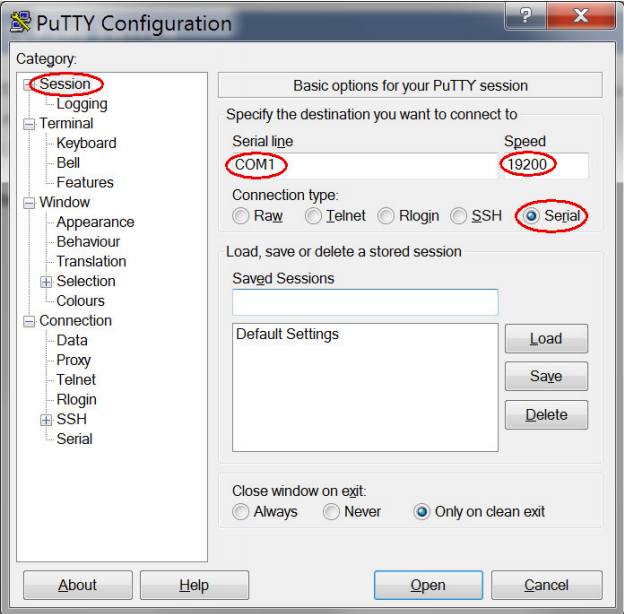
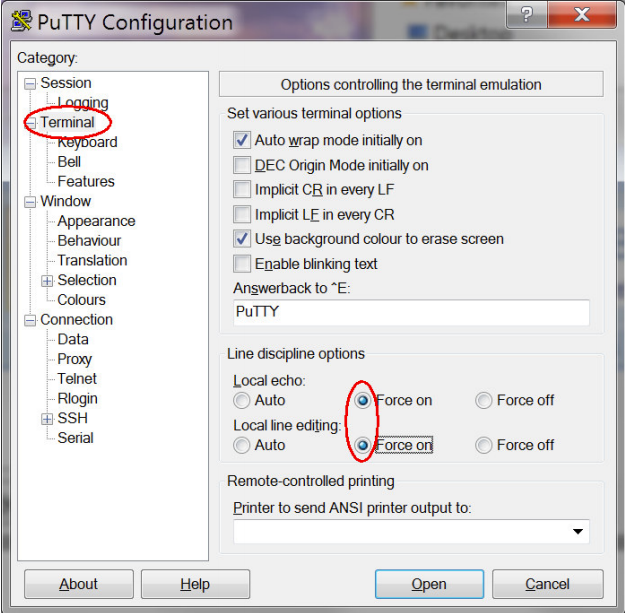
^OPT 1,247$, and press Enter. You can now install the switch normally — it will connect using the Zektor-branded driver.Using TCP/IP
00-15-82- or 5C-D4-AB-.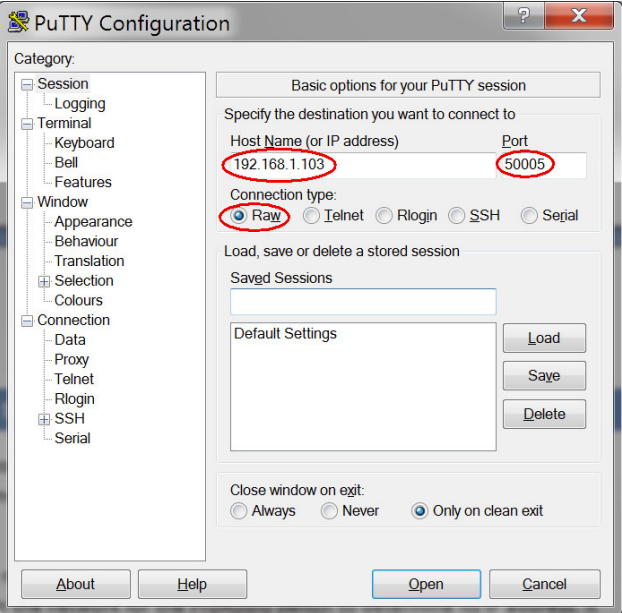
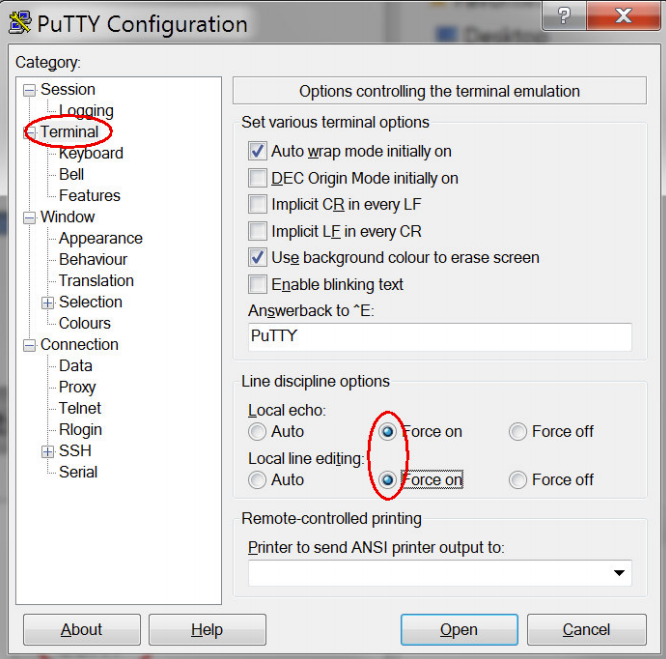
^OPT 1,247$, and press Enter. You can now install the switch normally — it will connect using the Zektor-branded driver. Remember to reconnect the Control4 controller to the network afterwards.Related Articles
Our support team can help troubleshoot Control4 driver naming or compatibility issues.
UK: 01202 413 610 | US: (858) 748-8250 | support@pulse-eight.com