In order to use EventGhost with the Pulse-Eight CEC adapter it is recommended that you install EventGhost first and then LibCEC to ensure the plugin is added to EventGhost correctly.
- Uninstall libCEC if already installed
- Install EventGhost first: https://www.eventghost.net/
- Reinstall libCEC 8.1.1: https://github.com/Pulse-Eight/libcec/releases
- Open EventGhost
- Click "Add Plugin" button (or Configuration → Add Plugin)
- Look for "Pulse-Eight USB-CEC Adapter" in the plugin list
- If it appears, the plugin is installed.
- Open CEC Tray on your PC
- Click file and enable advanced mode
- Click the CEC tester tab
- Ensure that your 'Power on device' commands work with your output device when it is in standby
SETTING UP EVENTGHOST FOR SCHEDULED TV CONTROL
1. Open EventGhost
2.At the top of the window select "Add Plugin" which is indicated by this symbol 
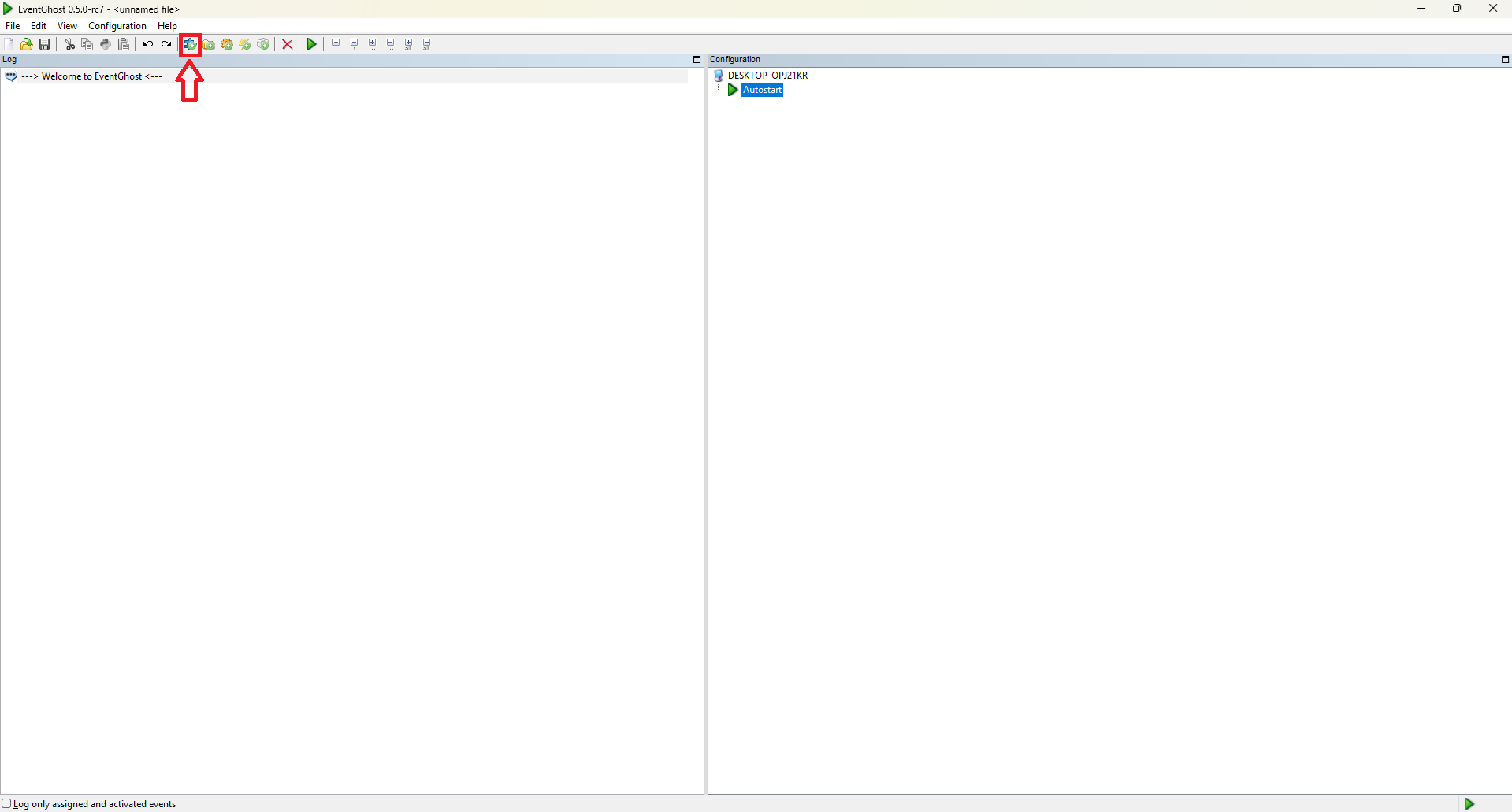
3. Scroll down and select "Pulse-Eight USB-CEC Adapter"
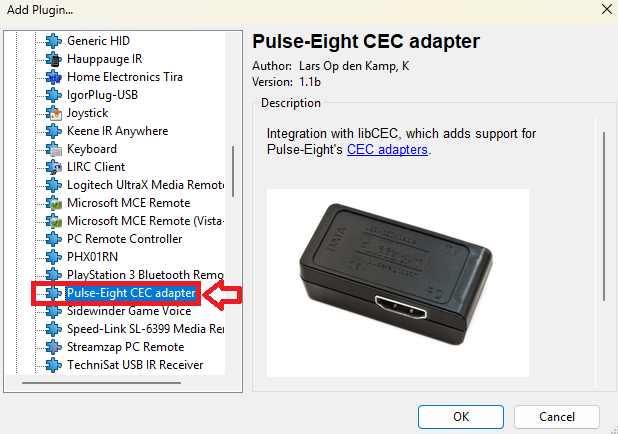
4. Click OK
5. The plugin should initialize and connect to your CEC adapter
6. Here you can:
Red: Change the name of the Adapter within EventGhost
Blue: set the HDMI port that the adapter connects to your output device
Green: Toggle AVR Volume Control
Yellow: Adjust the Polling Speed of the adapter [default 0.50]
Once configured to your liking click "Apply" and then "OK"
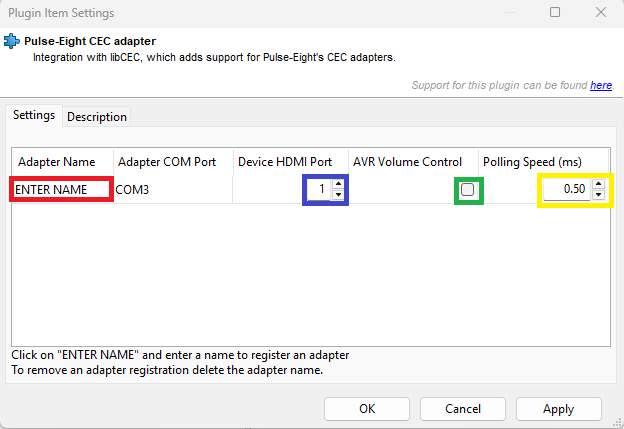
7. EventGhost will then prompt you to 'Add Actions' for this guide we will hit 'Cancel'
1. At the top of the EventGhost Configuration Tree Window click the 'Add Macro' button, indicated by this symbol
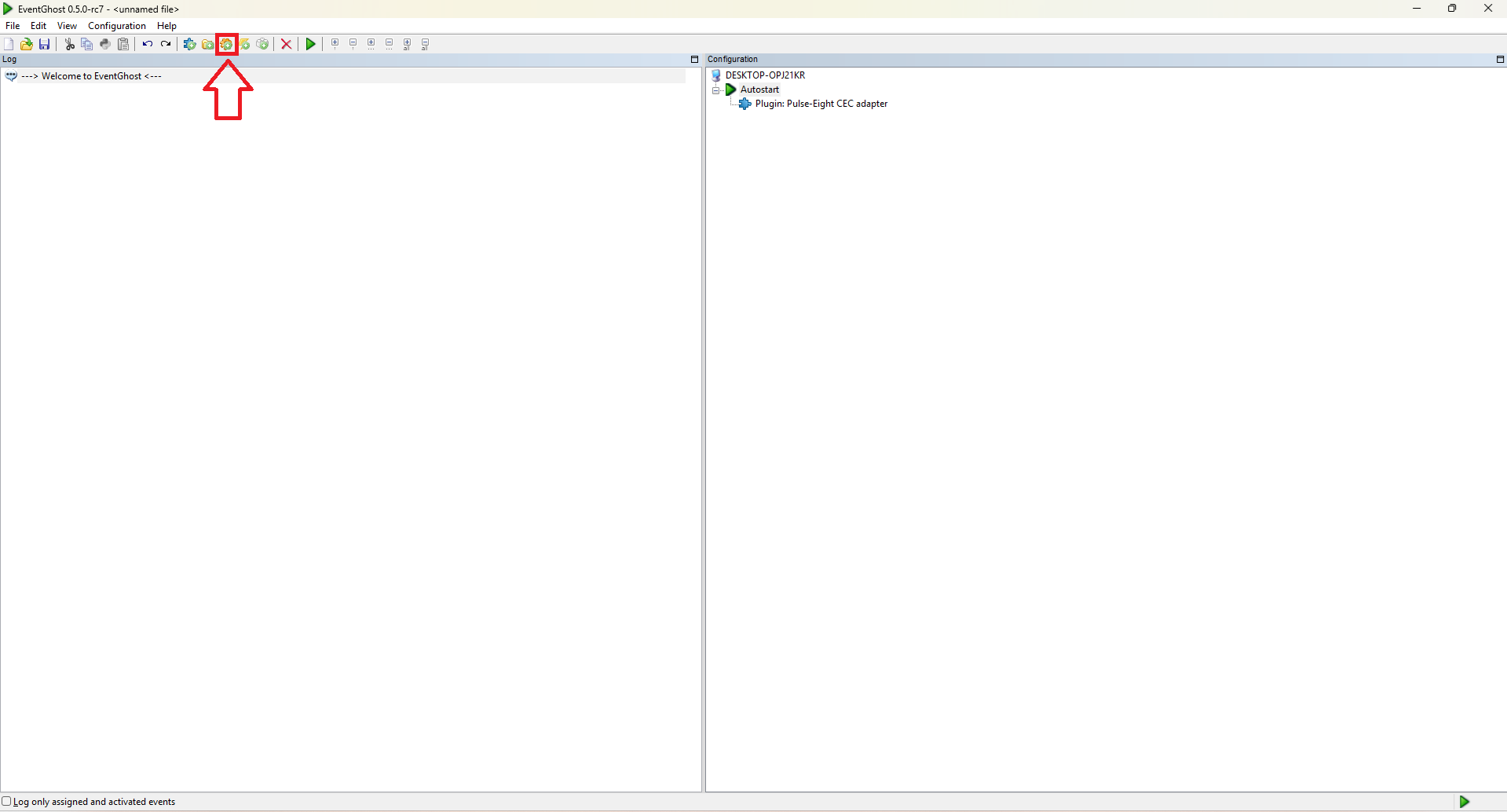
2. EventGhost will create the Macro and load the 'Add Actions...' Window. Clicking Cancel will take you back to the Configuration Tree Window but will add a blank Macro
3. Rename this macro to 'TV On' by right clicking the macro and selecting rename item
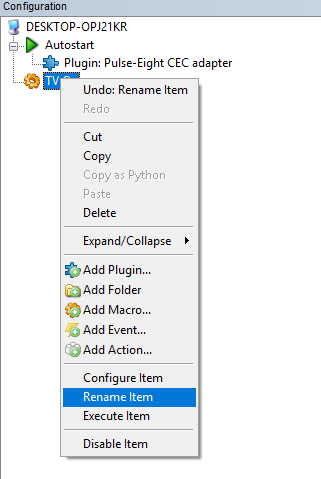
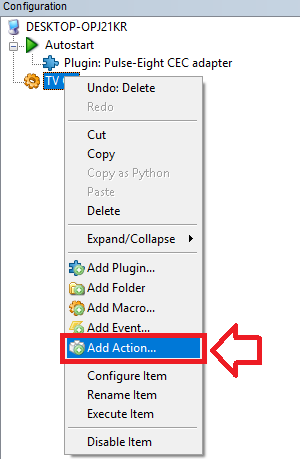
4. Right Click the Macro and Select 'Add Action...'
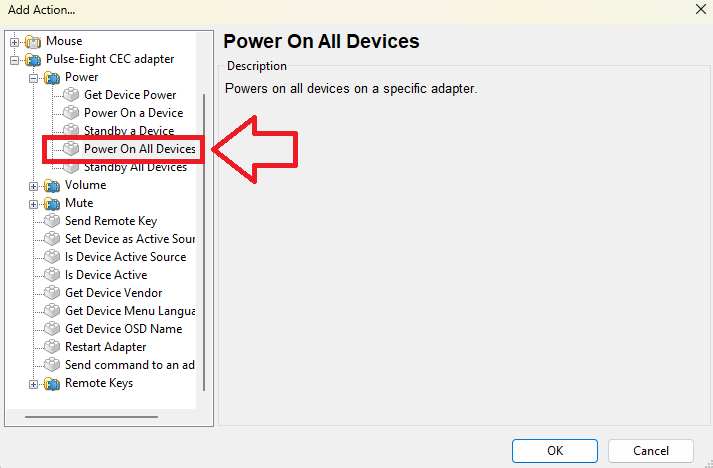
5. On the 'Add Actions...' Window that opens locate Pulse-Eight CEC adapter and click the plus to see more, then locate the Power folder and click the plus here to see more, locate 'Power On All Devices', select this and click OK
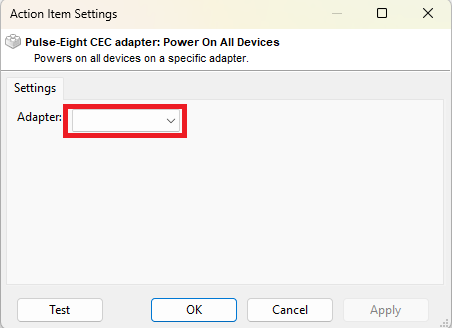
6. The 'Action Items Settings' window will now open, select your CEC adapter from the drop down, click Apply and OK
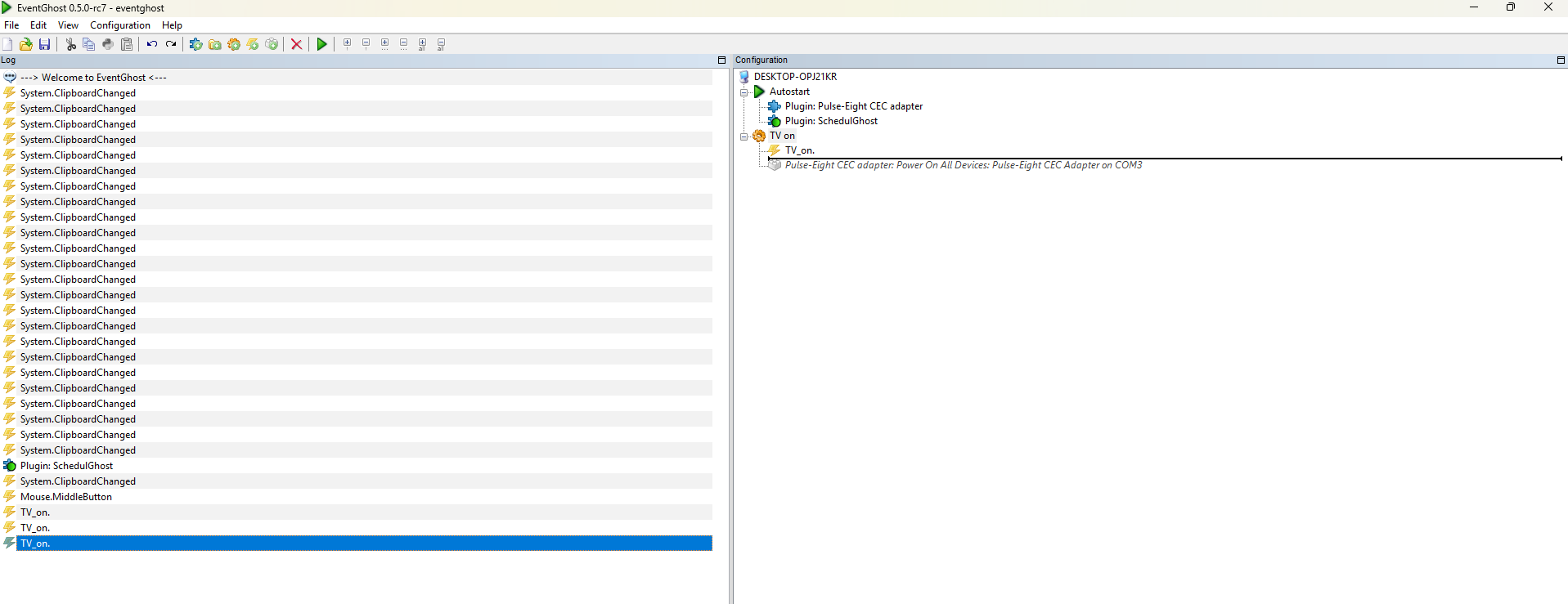
7. Your configuration tree should now look like this:
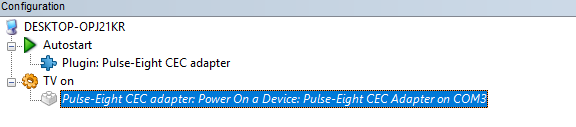
For this step I will be using the SchedulGhost plugin, if you have a preference of another plugin please feel free to use that but these steps will not be the same for you
1. At the top of the window select "Add Plugin" which is indicated by this symbol
2. Scroll down and select "SchedulGhost" and click OK
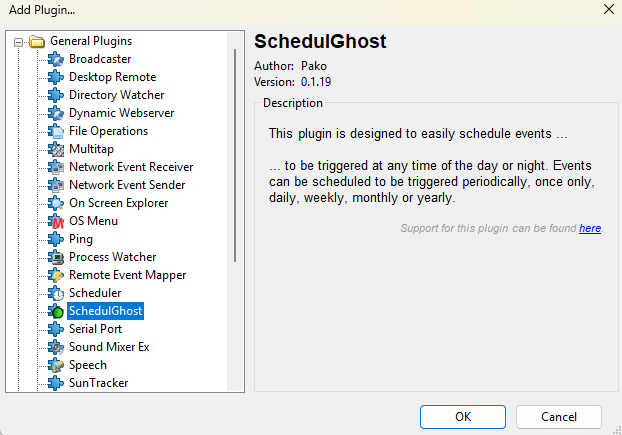
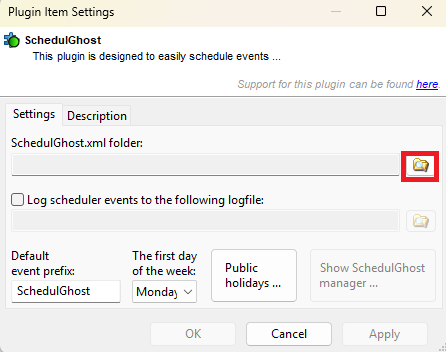
3. The Plugin Item Settings window for SchedulGhost will open, click the  icon and select a folder on your PC this can backup to
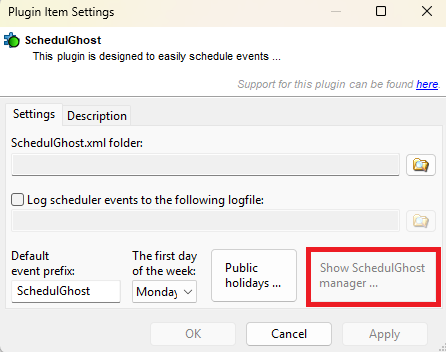
4 Clicking Apply will allow you to click 'Show SchedulGhost Manager...'
5. Here you can set your preferred schedule including days and times. This will need to be customised for your needs but I will be configuring my system to turn on the TV at 9am on weekdays and will look like this.
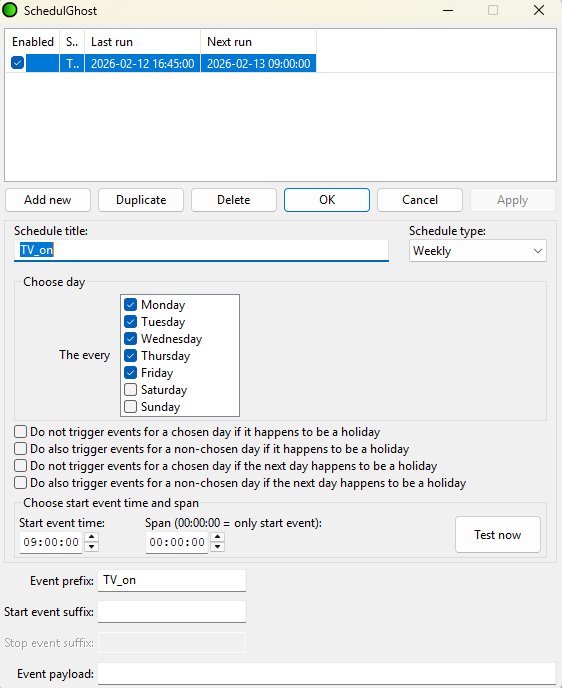
6. Once you have configured this screen to your needs make sure to click 'Test Now' to add this to the log
7. Click 'OK' this will take you back to the Plugin Items Settings Window, click Apply, then click OK
8. EventGhost will then prompt you to 'Add Actions' for this guide we will hit 'Cancel'
9. Once back on the Configuration Tree Window simply click the Event from the log and drag it onto your Macro so it sits above the Pulse-Eight CEC Adapter: Power On all Devices Action
 TEST THE MACRO
Before relying on the schedule, test manually:
- Select the "TV On" macro in the tree
- Press the "Execute" button (
 play button) in the toolbar
 - Your TV should turn on
- In EventGhost, go to File → Options
- Check "Start EventGhost on Windows startup"
- Check "Hide on startup" (optional - runs in system tray)
- Click OK