You can add a shortcut tile to your Android device's home screen for quick, one-tap access to your Neo Matrix or OneIP WebUI, without needing to type in the address each time.
Steps
1
Open your device's browser and go to your matrix's WebUI.Use gotomymatrix.com or your matrix's local IP address, in your Android device's browser.2
Open the browser menu.Tap the three-dot menu icon in the top right of the browser.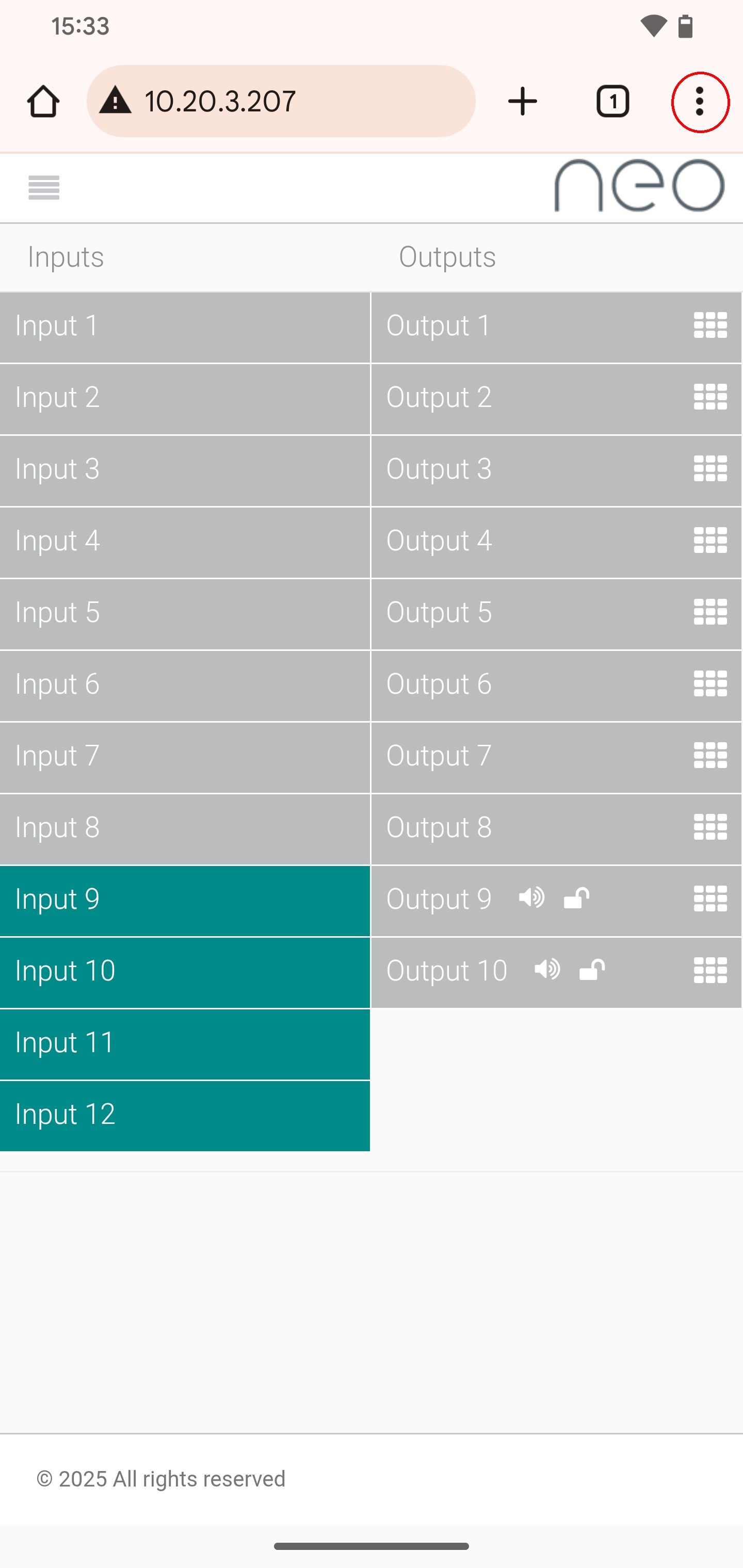
3
Select "Add to home screen."This appears in the browser menu that opens. 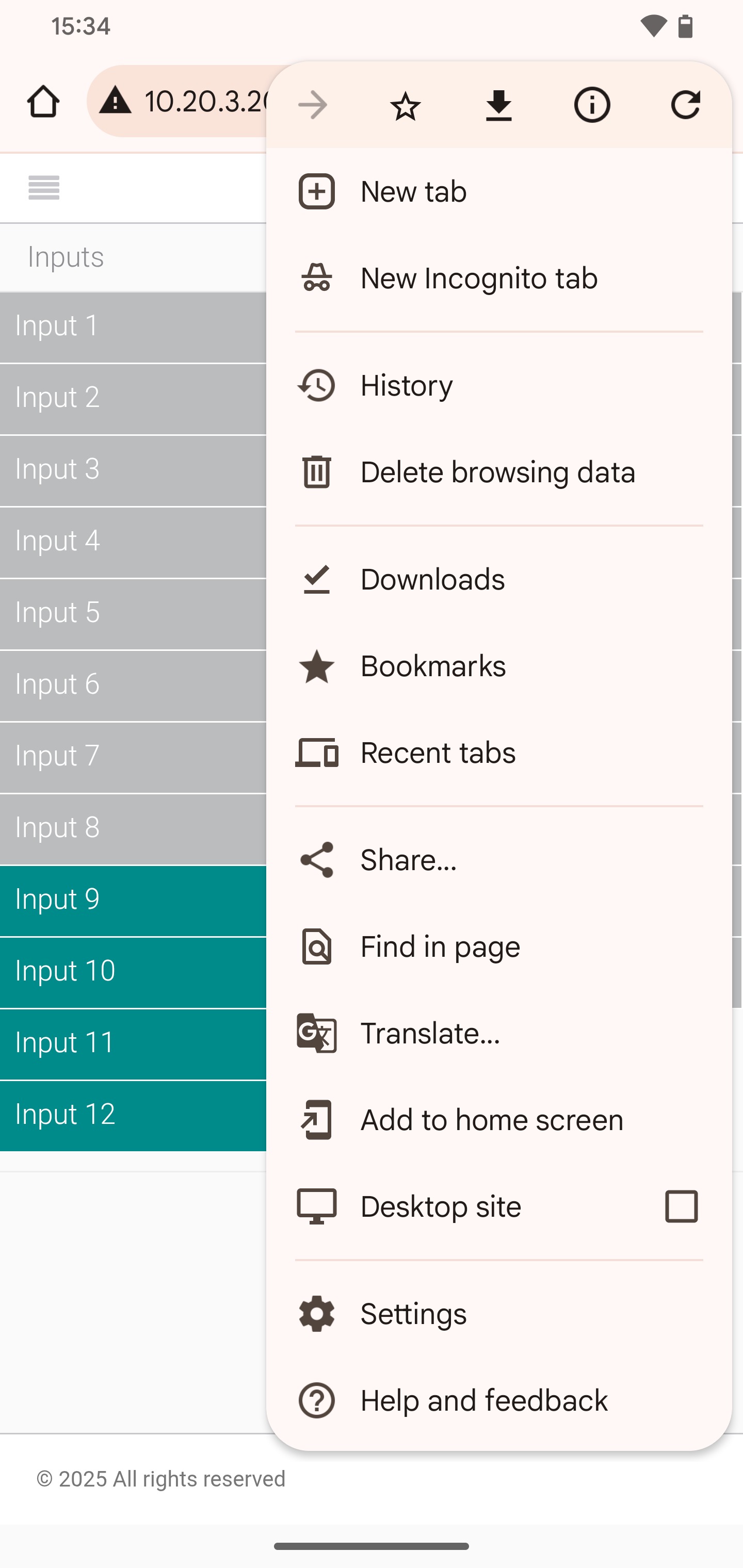
4
Name the shortcut and tap Add.A dialog lets you customise the tile's name — it defaults to "neo." Once you're happy with the name, tap Add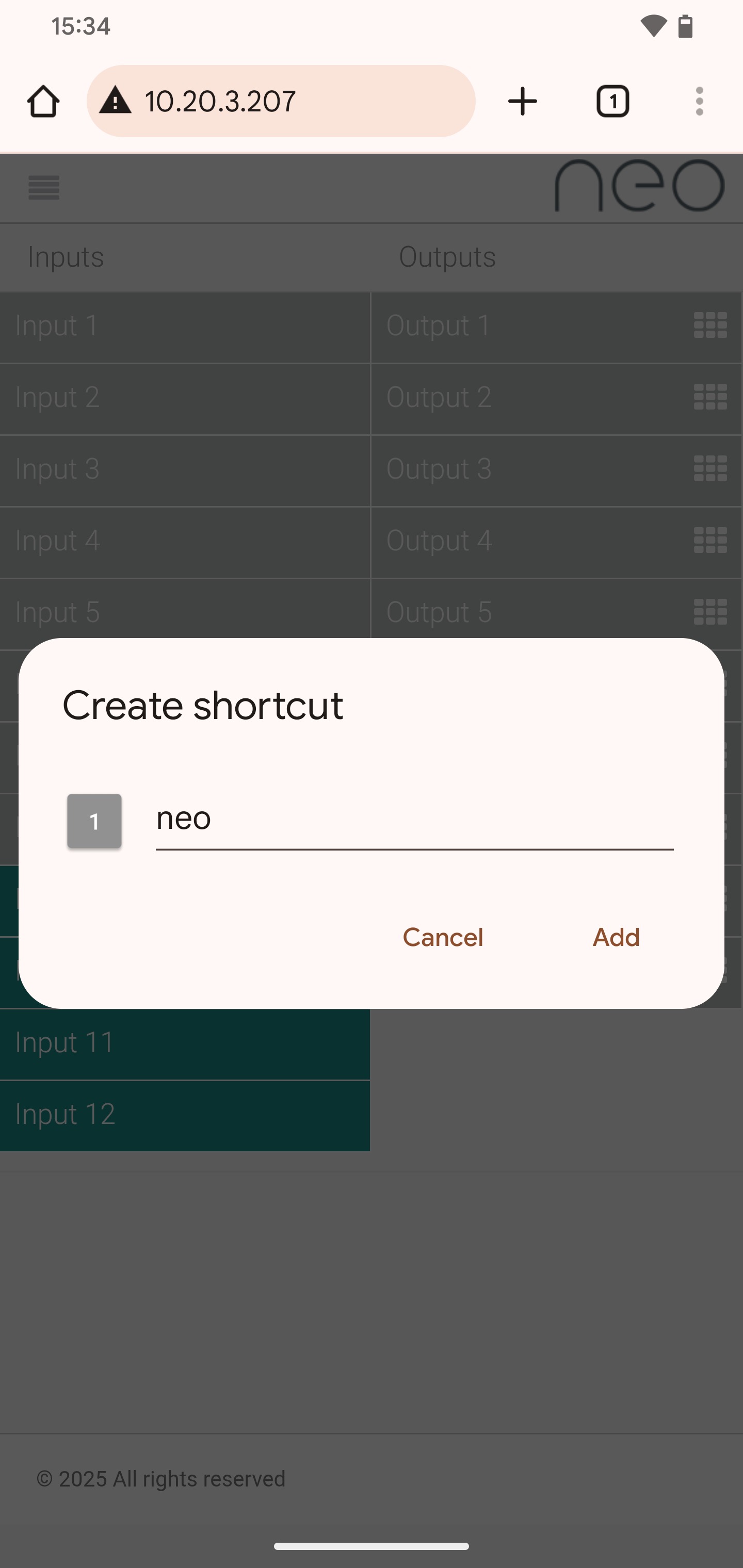
5
Choose a widget to host the tile.You may be asked to select which widget to use. We recommend any 1×1 browser tile. Once selected, tap Add to homescreen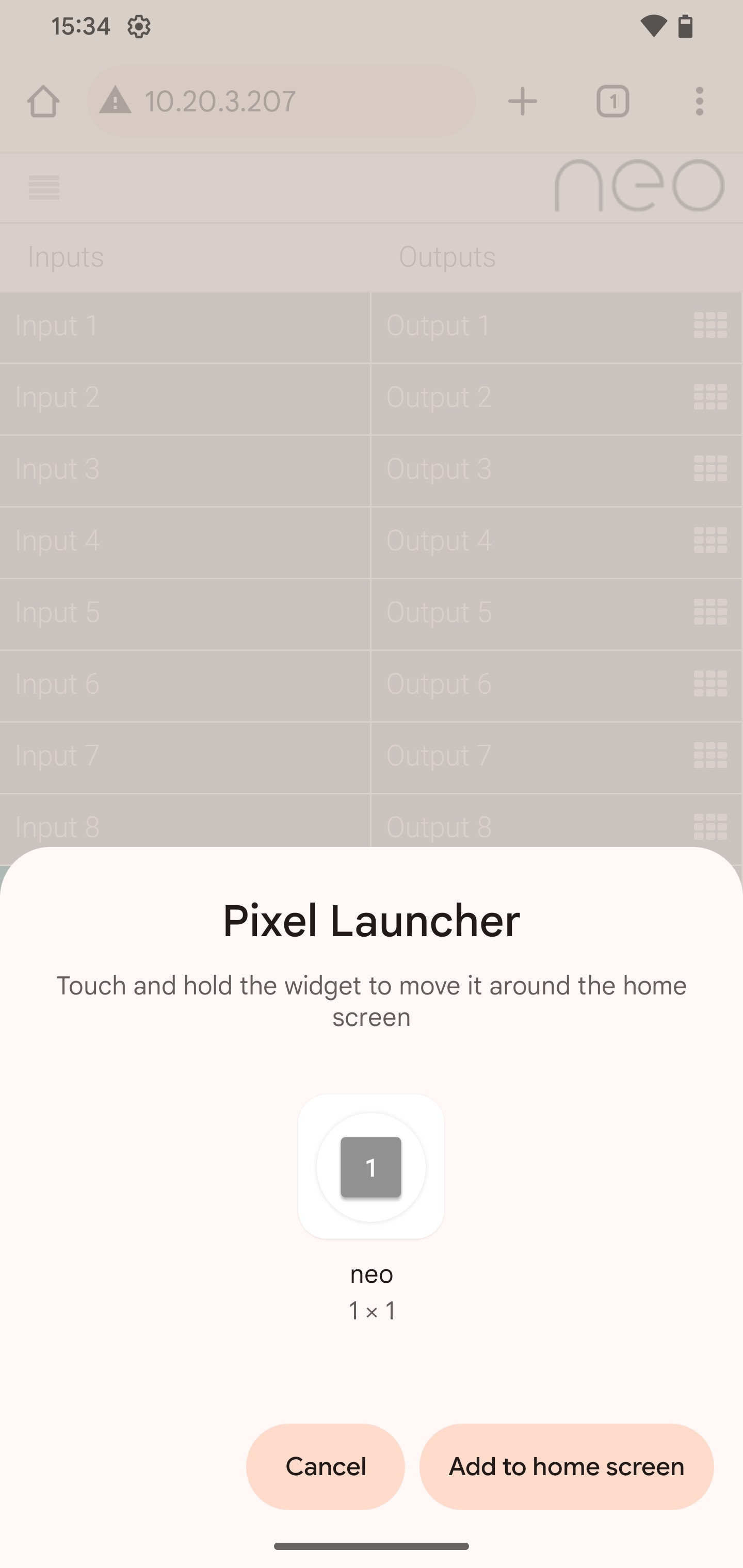
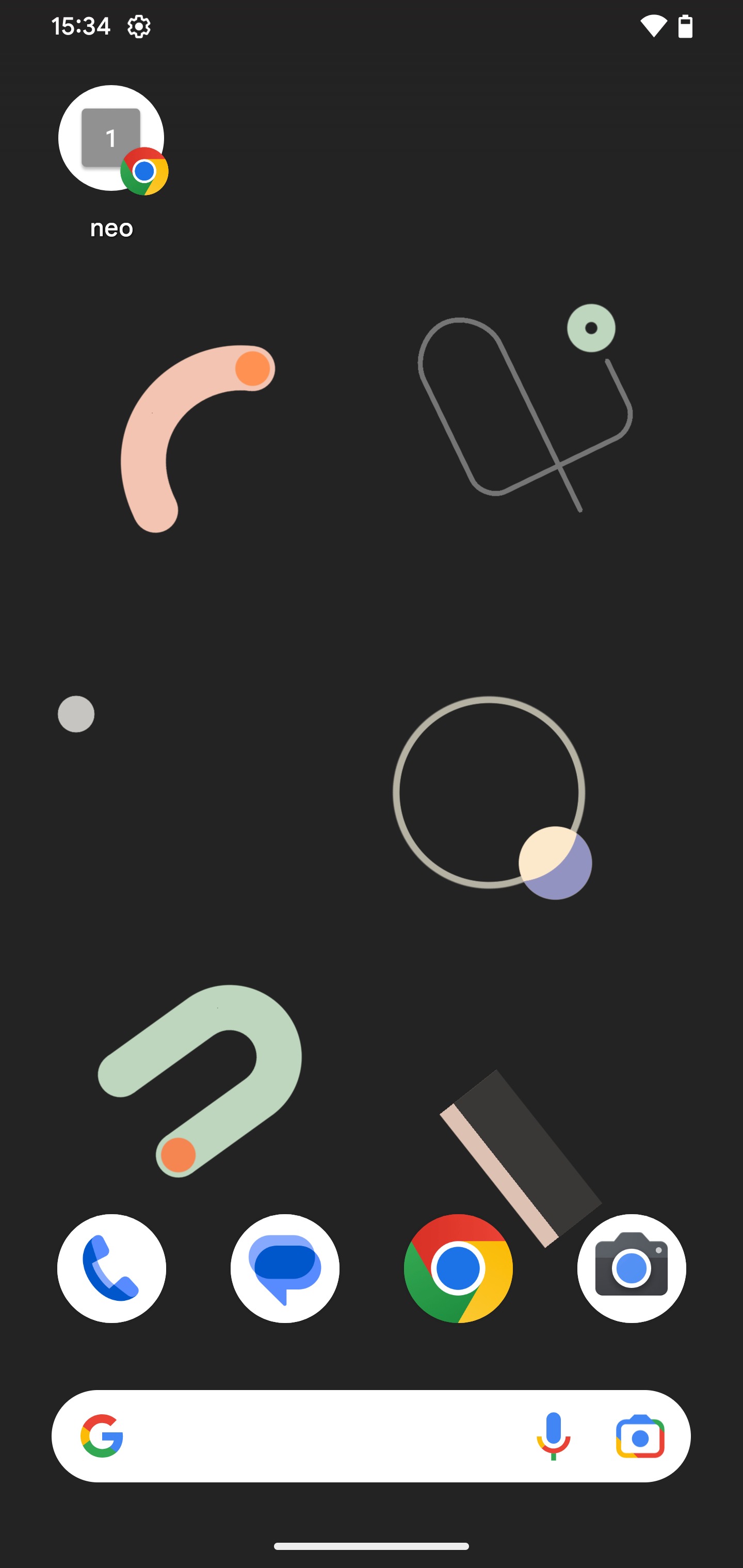
The tile now appears on your home screen. Tapping it opens the matrix WebUI directly.
Related Articles
Having trouble creating the shortcut?
Get in touch and we'll help you get set up.
UK: 01202 413 610 | US: (858) 748-8250 | support@pulse-eight.com